
OSS Password Pusher Can Now Email Pushes Directly to Recipients
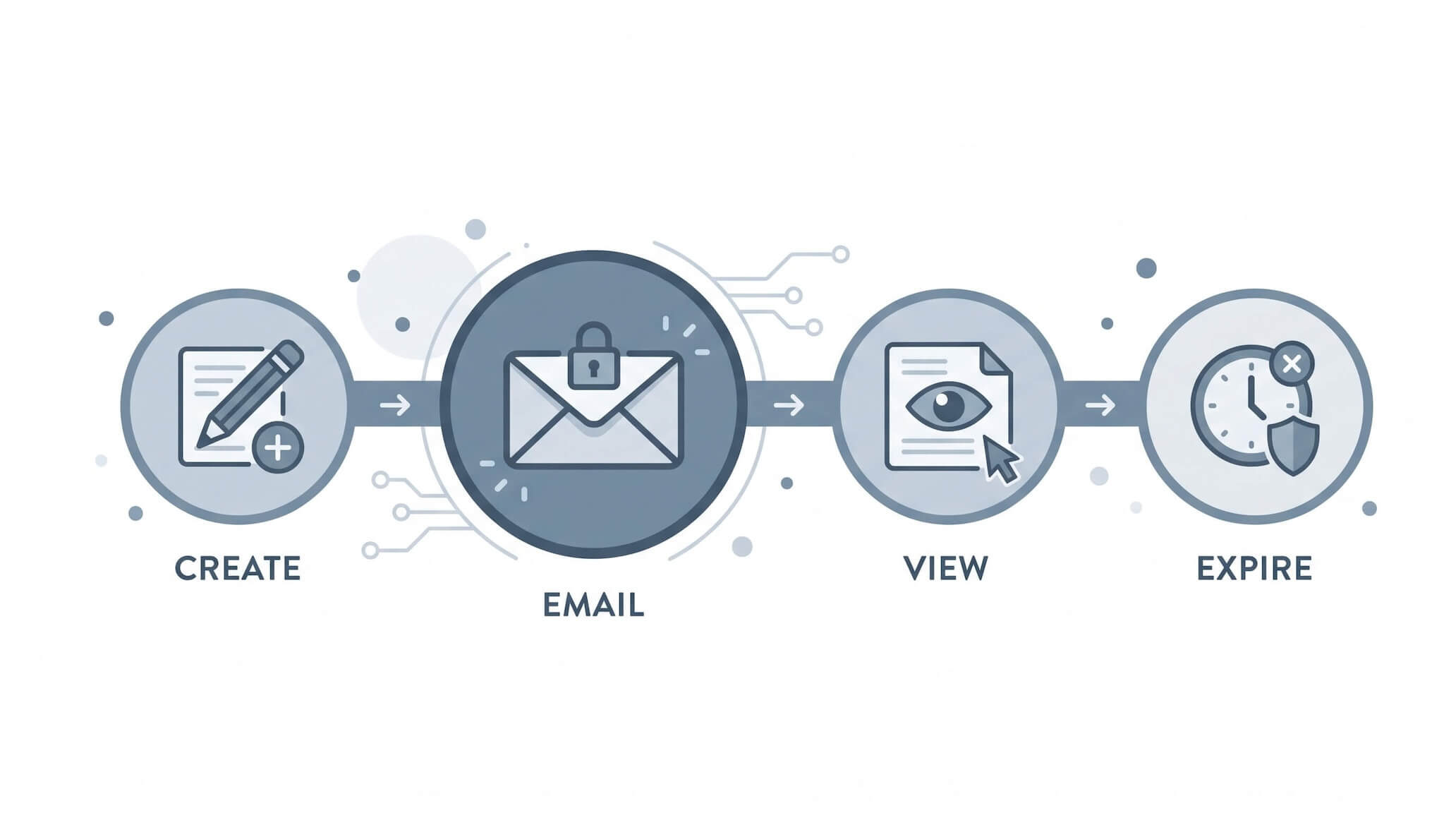
TL;DR: Starting with v2.9.0, OSS Password Pusher can automatically email your pushes directly to recipients. Enter one or more email addresses when creating a push, and the application sends the secret link on your behalf — with full audit logging and support for 30+ languages. Available from the UI and the API.
This is a Feature Pipeline release: auto-dispatch has been available on pwpush.com as part of the Pro edition, and is now included in OSS Password Pusher for all self-hosted deployments.
The Copy-Paste Problem
Every secret-sharing tool works roughly the same way: you create a self-destructing link, copy it, and then paste it into an email or chat message to send it along.
That last step — the manual copy-paste — has always been a minor annoyance for individual users and a real bottleneck for teams and MSPs who share credentials dozens of times a day. It also means the delivery method is entirely outside the application, so there’s no audit trail of who the link was sent to, only who viewed it.
v2.9.0 closes that gap.
What Is Auto-Dispatch?
When you create a push, you can now enter one or more recipient email addresses directly in the form. OSS Password Pusher will email the secret link to each recipient on your behalf, with a clear message explaining what it is, how long it lasts, and what to expect.
A few things worth noting:
- Up to 5 recipients per push. You can send to multiple people at once, comma-separated.
- Language selection. Choose the language for the email and the secret link page. This is useful when your recipients speak a different language — Password Pusher supports over 30 locales.
- Available on all push types. Text pushes, file pushes, URL pushes and QR pushes all support auto-dispatch.
- Works from the preview page too. Forgot to add recipients when creating? You can send the email from the push preview page after creation.
What Does the Recipient See?
Recipients receive an email with the secret link, who sent it, how long the link is valid, and a note about passphrases if one was set. The email is clean and straightforward — no marketing, no branding distractions.
Full Audit Trail
Every auto-dispatch action is recorded in the push audit log. You can see:
- When the email was queued
- Who it was sent to
- The delivery status: pending, processing, completed, partially failed, or failed
- Any error messages if delivery didn’t succeed
This is important for compliance and accountability. Previously, if you shared a link via email manually, Password Pusher had no record of who you sent it to — only who eventually viewed it. Now, the full lifecycle is tracked: creation → email dispatch → each view → expiration.
How Does It Work Under the Hood?
Auto-dispatch activates automatically when SMTP is configured on your instance. If your instance can send email, the auto-dispatch fields appear in the push creation form for signed-in users.
When a push with recipients is created, the application enqueues a background job that delivers one email per recipient. The job has built-in retry logic for transient SMTP failures.
There’s a configurable daily limit per user (default: 500 emails/day) to prevent abuse, and you can disable the feature entirely if you don’t want it.
Configuration
Two new environment variables:
| Variable | Default | Description |
|---|---|---|
PWP__NOTIFY_BY_EMAIL__ENABLED |
true |
Set to false to fully disable auto-dispatch (hides UI, blocks API). |
PWP__NOTIFY_BY_EMAIL__DAILY_LIMIT |
500 |
Per-user daily email cap. Set to 0 to block sends (UI still visible), leave unset for unlimited. |
Or in settings.yml:
notify_by_email:
  enabled: true       # Set to false to fully disable
  daily_limit: 500    # Set to 0 to block sends, null for unlimited
For the full configuration reference, see the Notify by Email documentation.
API Support
The JSON API v2 supports auto-dispatch in two ways:
1. On push creation — include notify_emails_to and optional notify_emails_to_locale:
curl -X POST "https://your-instance.com/api/v2/pushes.json" \
  -H "Authorization: Bearer YOUR_API_TOKEN" \
  -H "Content-Type: application/json" \
  -d '{
    "push": {
      "payload": "my-secret-password",
      "expire_after_days": 3,
      "expire_after_views": 5,
      "notify_emails_to": "alice@example.com, bob@example.com",
      "notify_emails_to_locale": "fr"
    }
  }'
2. For existing pushes — send notifications after creation:
curl -X POST "https://your-instance.com/api/v2/pushes/YOUR_URL_TOKEN/notify_emails" \
  -H "Authorization: Bearer YOUR_API_TOKEN" \
  -H "Content-Type: application/json" \
  -d '{
    "notify_emails_to": "alice@example.com",
    "notify_emails_to_locale": "en"
  }'
The audit log endpoint also returns email dispatch events, so you can programmatically check delivery status.
For teams and MSPs who script their credential sharing workflows, this is a meaningful improvement: you can now create a push and deliver it to the recipient in a single API call.
Feature Pipeline
Auto-dispatch has been part of the Pro edition on pwpush.com for some time. With v2.9.0, it’s now included in OSS Password Pusher for all self-hosted deployments.
This is how the Feature Pipeline works: Pro subscribers on pwpush.com get early access to new features, and over time, those features move into the open-source codebase. Subscribers fund the development; OSS Password Pusher is the eventual beneficiary.
If you’re running a self-hosted instance, upgrade to v2.9.0 and make sure SMTP is configured — the feature activates automatically from there.
Where This Might Not Be the Right Fit
Auto-dispatch sends emails through your instance’s configured SMTP server. If your SMTP provider has strict sending limits (e.g., Gmail’s 500/day for personal accounts), the daily cap setting lets you stay within those limits. For high-volume use cases, a transactional email provider like SendGrid or Amazon SES is recommended.
Also, auto-dispatch requires signed-in users — anonymous pushes can’t trigger email notifications, by design. This prevents the feature from being used for spam.
Peter Giacomo Lombardo Founder & Principal, Apnotic · Creators of Password Pusher