
Hosted (Pro)
Hosted Pro on pwpush.com—Premium features plus custom domains, teams, and security policies.
Overview
Pro is the top hosted plan at pwpush.com. It includes everything in Premium—file sharing (including attachments on request responses), branded push and request pages, audit logging—plus custom domains for your secret links, team collaboration, team-wide policies, and priority support. (Requests on Free are text-only; file attachments on request responses require Premium or Pro.)
Instead of sharing links like https://eu.pwpush.com/p/abc123, you can use your own host, for example https://pwp.yourdomain.com/p/abc123:

Subscribe in your preferred data residency: us.pwpush.com or eu.pwpush.com. See Regions.
Features (in addition to Premium)
- Custom domain — White-label URLs for your pushes; configure in account settings and DNS (below)
- Teams — Invites, roles, and collaboration
- Policies — Team-wide security settings
- Priority support
Teams and policies
Pro is built for shared accounts: one subscription can cover multiple people working from the same dashboard, with invitations, roles, and team-wide policies so admins can standardize how pushes and requests behave.
Inviting team members
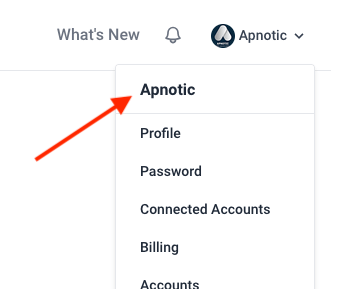
- Open the account menu in the top-right of the app and choose your team account (not your personal profile).
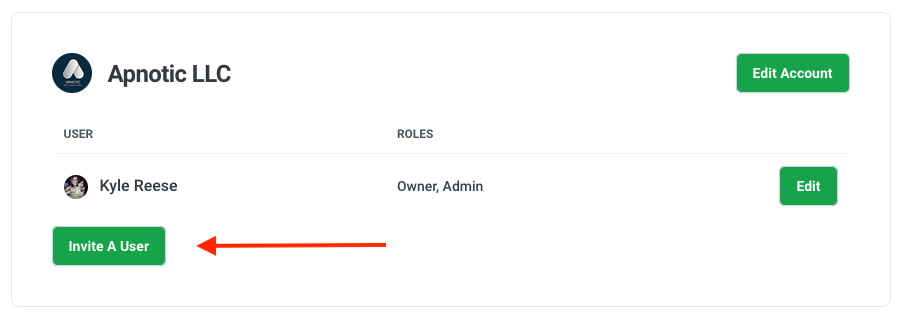
- On the account page, use Invite a User to send an email invitation. Invited users join the same shared dashboard as everyone else on that account.
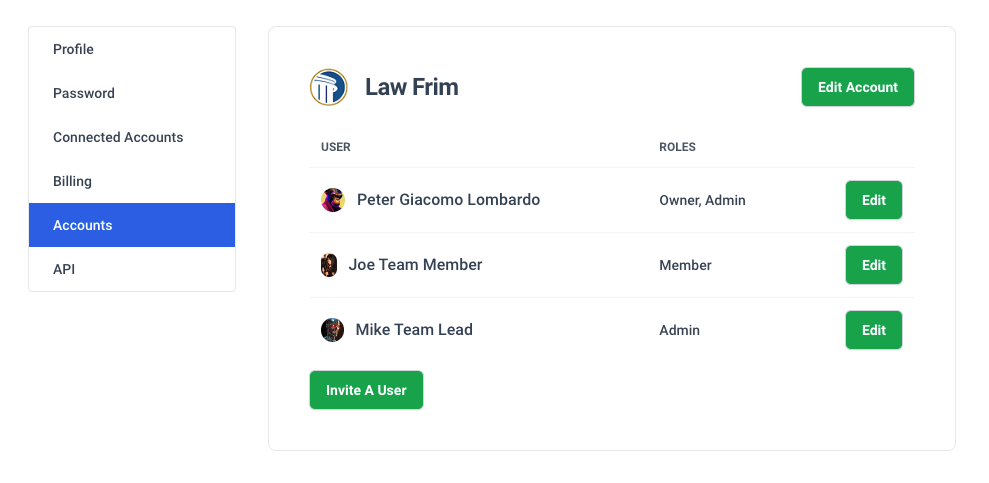
You can see pending invitations and members from the team area:
More detail: How can I invite users to my account? — including separate accounts when you need isolation between groups.
Roles (admin and member)
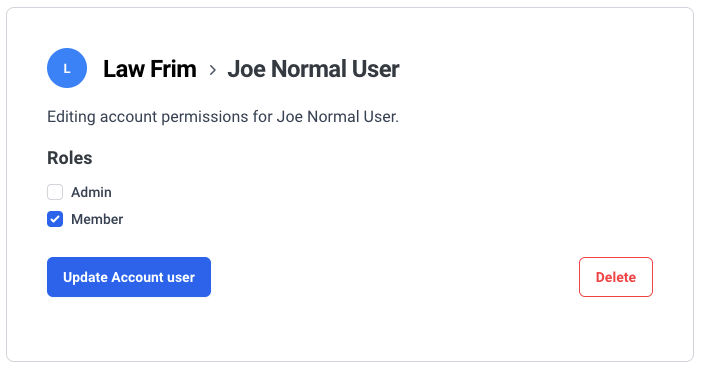
Account admins can invite and remove users, manage team policies, and handle billing-related account settings. Members use the shared workspace under the rules the team defines.
Note: Expanded team roles are coming soon—this overview reflects today’s admin and member model.
Shared dashboard
On hosted Pro at pwpush.com, everyone on the account works from the same list of pushes and requests (collaborative by design). For a quick view of that workflow:
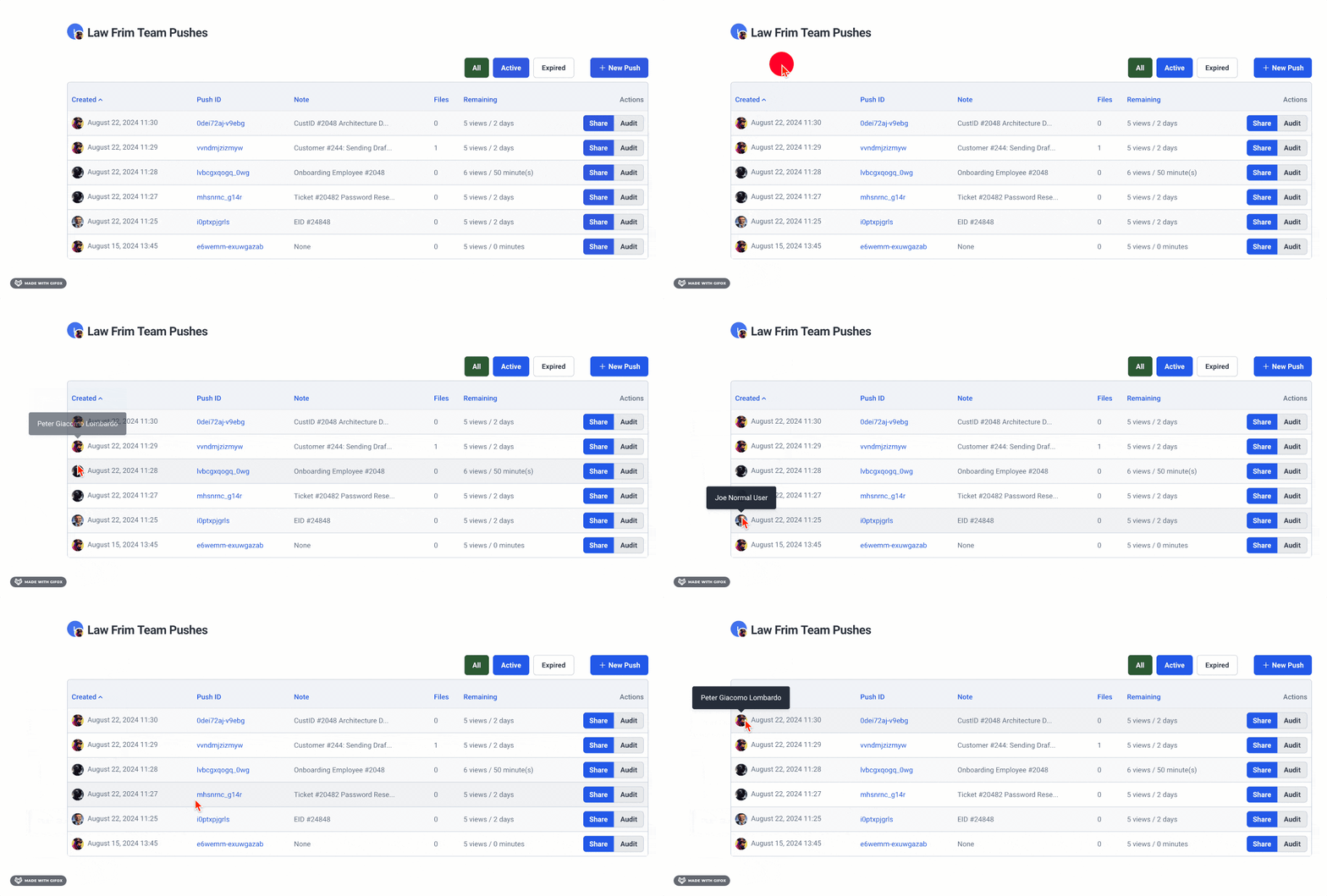
Coming soon: Expanded team roles will let you decide which team members see the shared dashboard—today, everyone on the hosted Pro account uses the same shared view.
Self-Hosted Pro works differently: each user has their own dashboard, while administrators can monitor activity from within the application. See Pro Self-Hosted Overview and Operations for how that deployment behaves.
Team policies
Admins can open Admin → Application Policies to set defaults and limits for the whole team: for example push expiration ranges, view limits, which options appear on the push and request forms, request notification behavior, and password-generator settings. Policies help you enforce consistent security without asking each user to remember every rule.
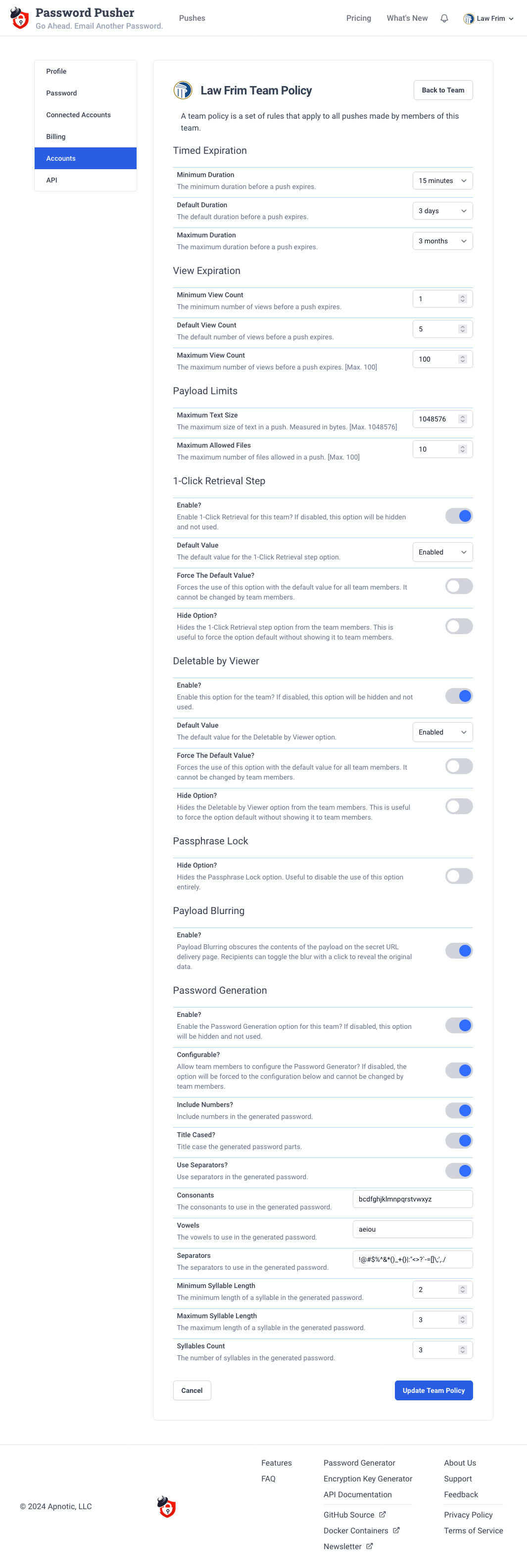
The policy UI is organized into sections (expiration, limits, options, request settings, password generator, and more). Pick a section, choose Edit, adjust values, and save so they apply to everyone on that account.
Add a custom domain
- Open your account edit page on your regional host (
usoreu). - Find the Custom Domain section.
- Enter the fully qualified domain name without protocol or path (e.g.
pwp.yourdomain.comforhttps://pwp.yourdomain.com).
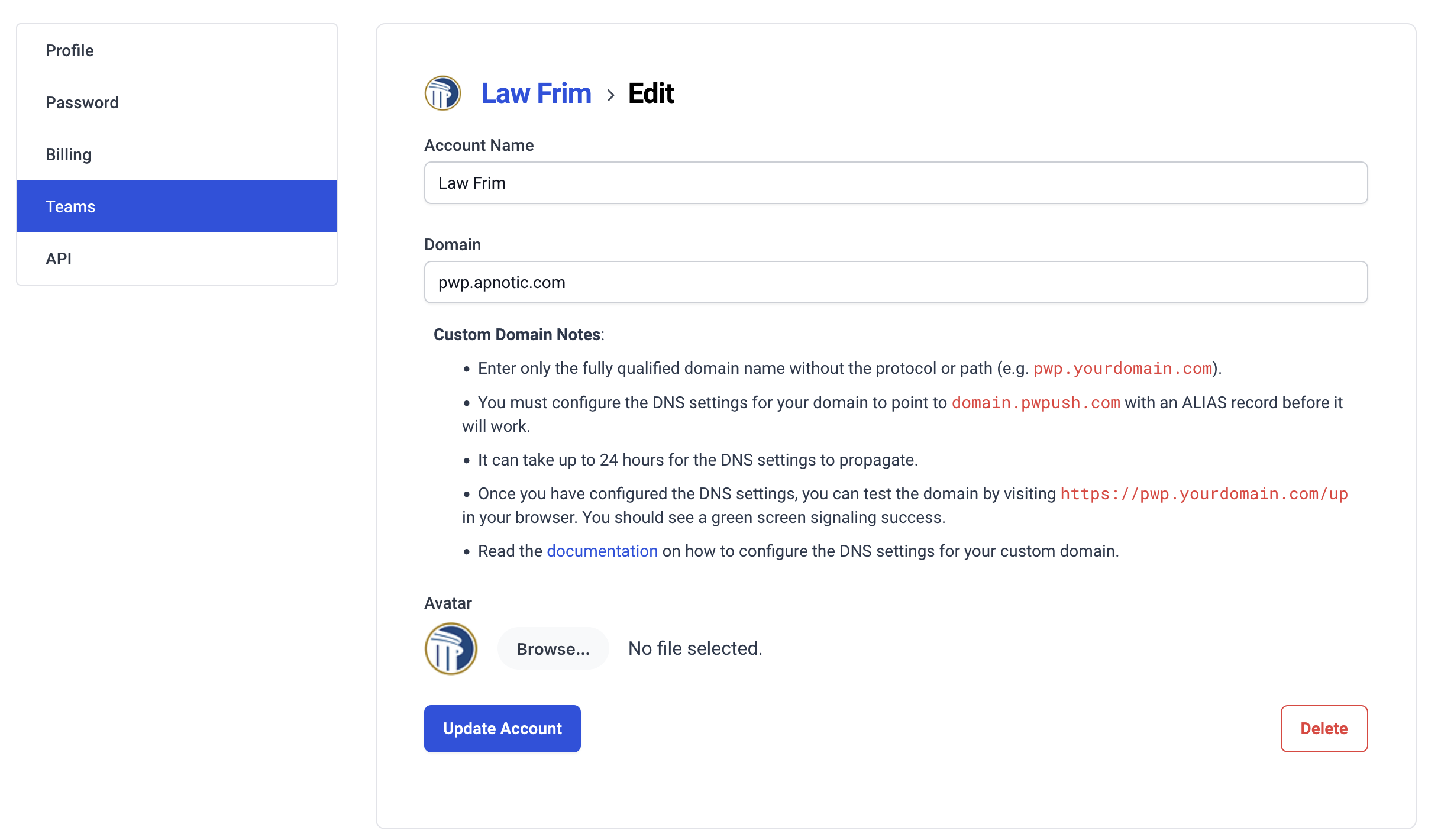
Best practice: Use a subdomain dedicated to Password Pusher (for example pwp.yourdomain.com or password.yourdomain.com), not your apex marketing site.
Configure DNS
Before the domain works, point DNS at Apnotic’s infrastructure for your region.
DNS targets
Create either an ALIAS or CNAME record:
| Region | Target |
|---|---|
| US | domains-us.pwpush.com |
| EU | domains-eu.pwpush.com |
Record type
| Record type | Best for | Notes |
|---|---|---|
| ALIAS | Root / apex domains (e.g. example.com) |
Not supported by every DNS provider |
| CNAME | Subdomains (e.g. push.example.com) |
Widely supported; not valid at bare root for DNS reasons |
Use one record type—not both.
Example ALIAS record for the US Region:

Example CNAME record for the EU Region:

Propagation
DNS can take up to 24 hours to propagate globally; often it is much faster (minutes to a few hours). After changes, wait before testing. Tools such as whatsmydns.net can show propagation status.
Test your domain
When DNS has propagated, open:
https://pwp.yourdomain.com/up
(use your real hostname). On success you should see a green status screen:
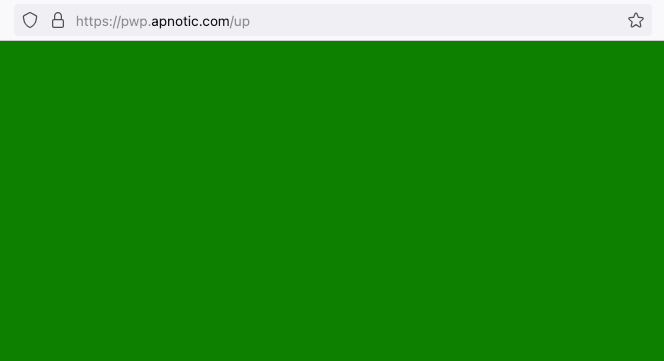
That indicates DNS is correct, SSL/TLS is active (issued automatically via Let’s Encrypt), and the domain is ready. Certificates renew automatically—no manual renewal steps.
Troubleshooting
Domain not working
- Confirm DNS points to
domains-us.pwpush.comordomains-eu.pwpush.com(matching your account region). - Re-check the hostname in settings (no
https://, no path). - Allow time for propagation.
SSL issues
- Wait several minutes after DNS is correct for certificate issuance.
- Try a private/incognito window or clear cache.
Still stuck — Contact support.
How to get started
- Review Pro on the pricing page and Editions.
- Subscribe on us.pwpush.com or eu.pwpush.com.
- Configure Branding (same as Premium) if desired—see Hosted (Premium).
- Invite teammates and set Application Policies (admins)—see Teams and policies above.
- Add your custom domain and DNS as above, then verify with
/up.
See also
- Hosted (Free) — Free hosted tier
- Hosted (Premium) — Branding and file sharing
- Regions — US vs EU
- Editions — Full comparison