
Rebranding (Hosted)
Branding and custom domain options for Premium and Pro subscribers.
Overview
Premium and Pro subscribers at pwpush.com have access to advanced branding features beyond what’s available in the open source version:
- Premium: Branded push delivery pages with custom logos, colors, and messaging
- Pro: All Premium features plus custom domain support
Note: For OSS self-hosted branding options (themes, logos, custom CSS), see Rebranding (OSS Self-Hosted).
Premium
Premium subscribers can fully customize push and request delivery pages with their own branding.
Brandable Pages
Premium subscribers can brand the following pages:
Push Pages:
| Page | Description |
|---|---|
| 1-Click Retrieval | Initial page before accessing a push |
| Passphrase | Passphrase entry for protected pushes |
| Push Delivery | Page displaying push content |
| Push Expired | Shown when a push has expired |
Request Pages:
| Page | Description |
|---|---|
| Request Delivery | Page where recipient receives the request |
| Request Ready | Confirmation after response is submitted |
Global Branding:
| Element | Description |
|---|---|
| Logo | Custom logo displayed on branded pages |
| Favicon | Custom browser tab icon |
Accessing Branding Configuration
Access the Branding configuration page from your account settings:
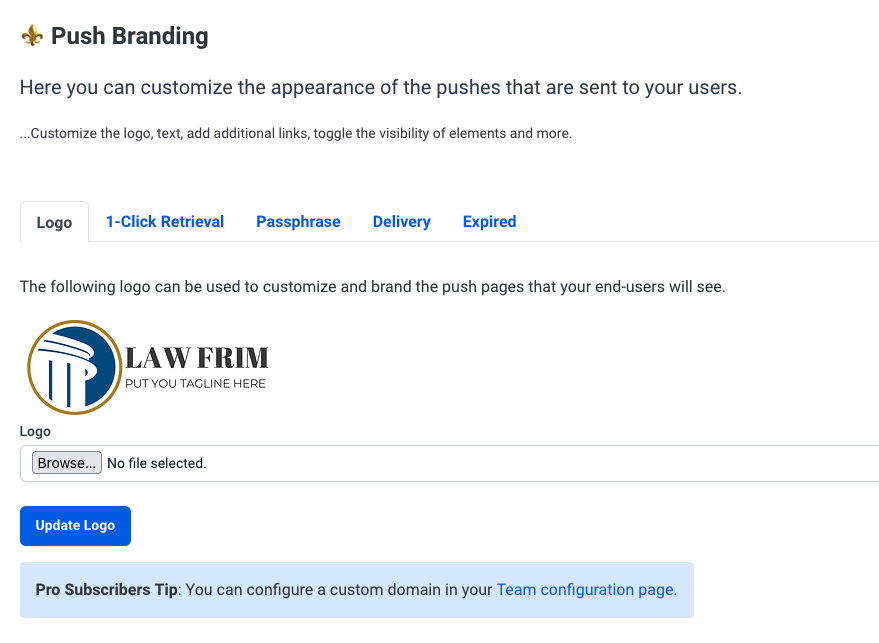
Example
Below is an example of a customized push delivery page:
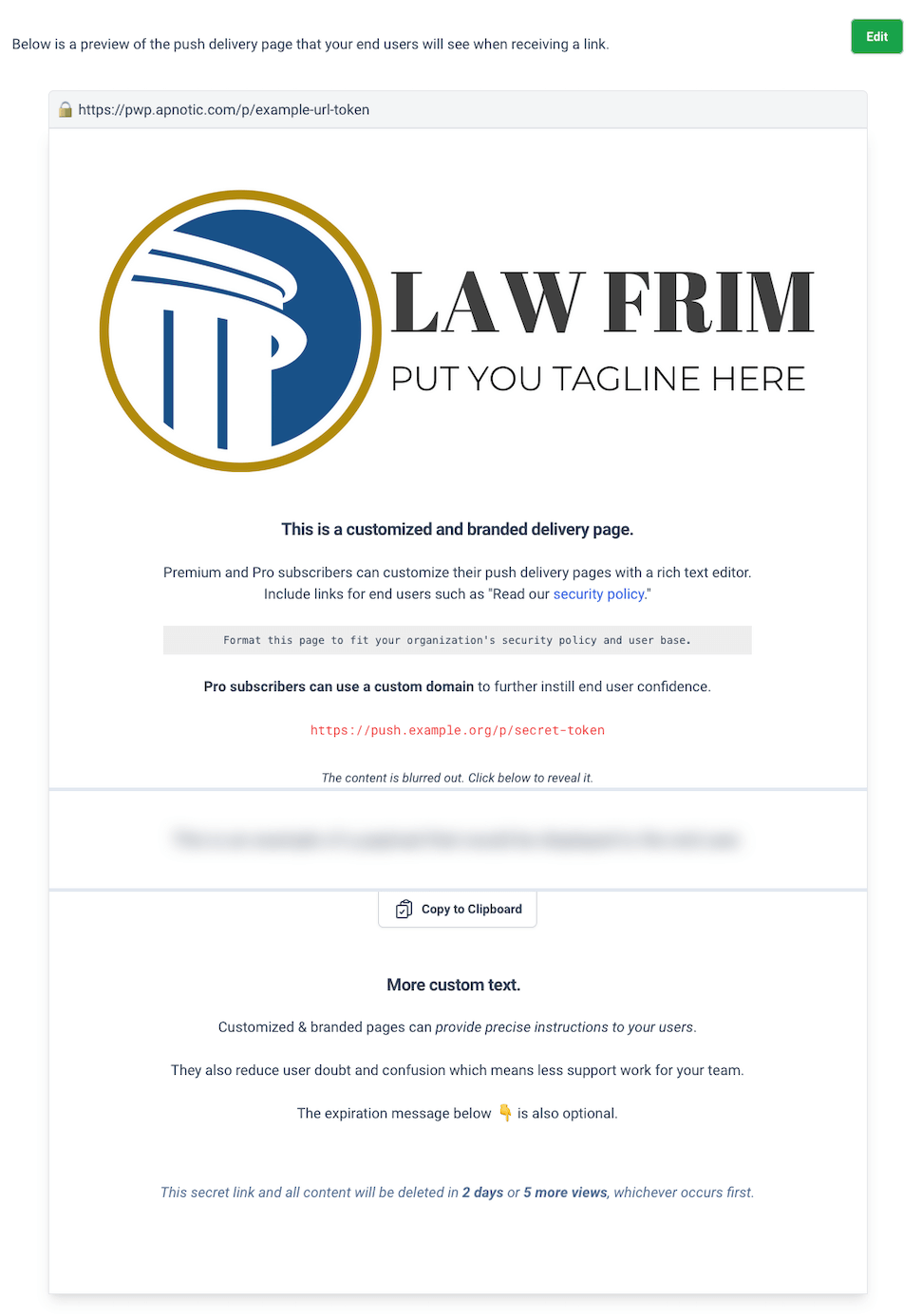
For more screenshots, see the Pipeline: New Features page.
Pro
Pro includes all Premium features plus custom domain support for your pushes.
Instead of https://pwpush.com/p/abc123, your pushes use https://pwp.yourdomain.com/p/abc123:

Adding a Custom Domain
To add a custom domain:
- Navigate to your account edit page
- Find the “Custom Domain” section
- Enter the fully qualified domain name without the protocol or path
Example: For https://pwp.yourdomain.com, enter only pwp.yourdomain.com
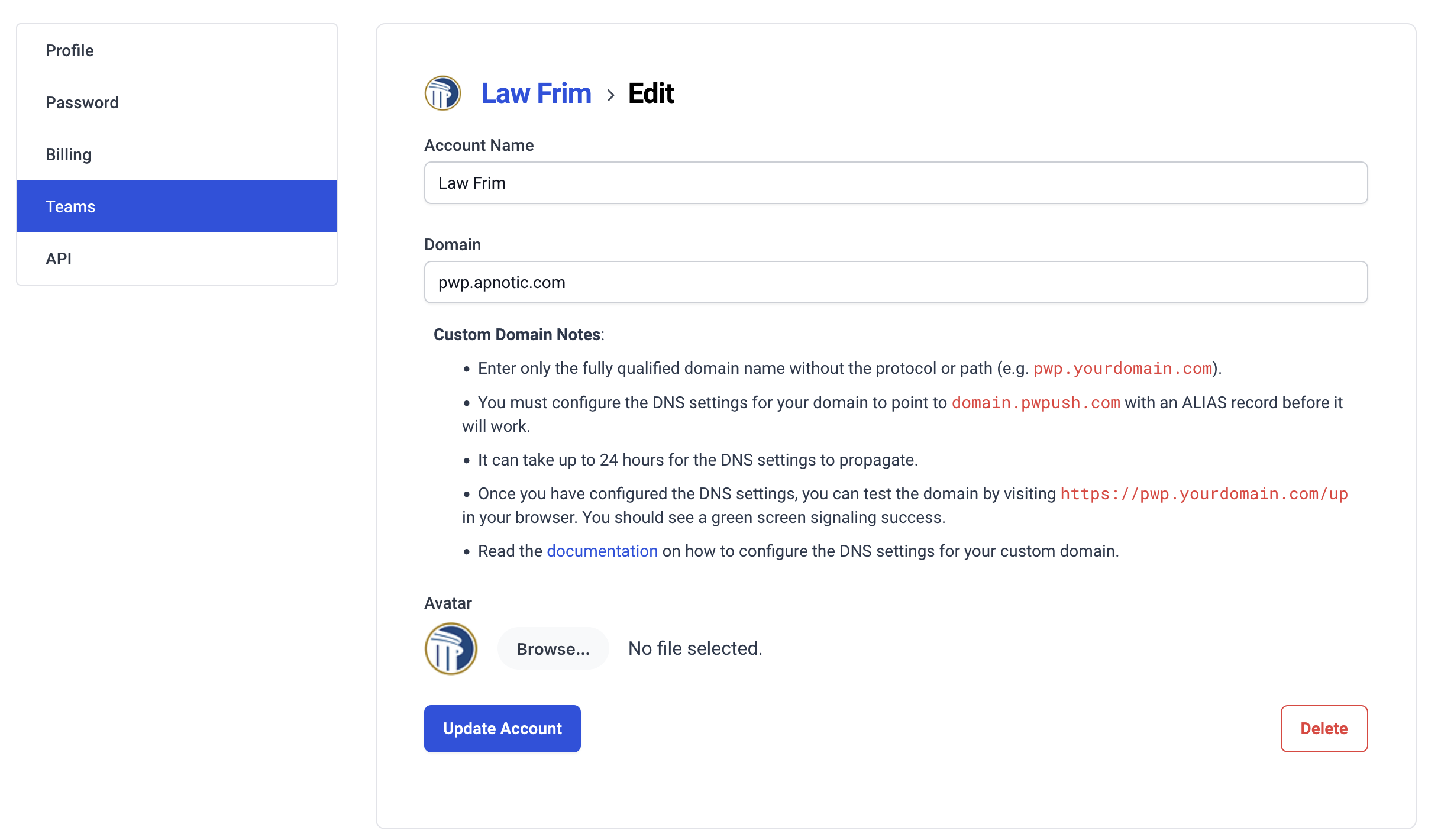
Best Practice: Use a subdomain dedicated to Password Pusher (e.g., pwp.yourdomain.com or password.yourdomain.com) rather than your main domain.
Configuring DNS
Before your custom domain can be used, you must configure DNS to point to Apnotic servers.
DNS Record Configuration
Create either an ALIAS or CNAME record pointing your custom domain to the target for your region:
| Region | Target |
|---|---|
| US | domains-us.pwpush.com |
| EU | domains-eu.pwpush.com |
Which Record Type to Use
| Record Type | Best For | Notes |
|---|---|---|
| ALIAS | Root domains (e.g., example.com) |
Not supported by all DNS providers |
| CNAME | Subdomains (e.g., push.example.com) |
Universally supported; cannot be used at the root domain |
Use one or the other—not both.
Example ALIAS Record:

Example CNAME Record:

DNS Propagation
DNS changes can take up to 24 hours to propagate globally, though typically it’s much faster (15 minutes to a few hours).
Note: After configuring DNS, wait for propagation before testing. You can check DNS propagation using tools like whatsmydns.net.
Testing Your Domain
Once DNS has propagated, test your custom domain by visiting:
https://pwp.yourdomain.com/up
Success Indicator: Upon success, you will see a green screen:
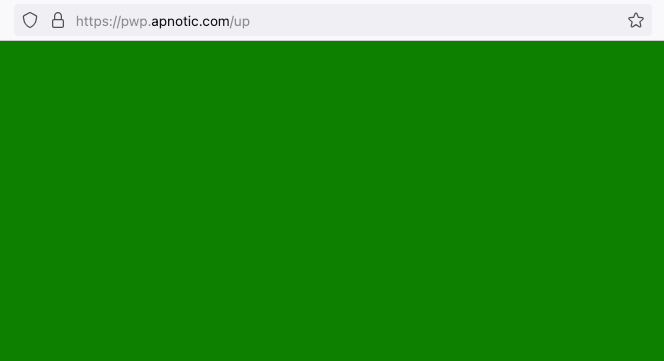
This green screen indicates that:
- DNS is correctly configured
- SSL/TLS certificate is active
- The domain is ready for use
SSL/TLS
SSL/TLS setup is automatic - no manual configuration required. Password Pusher uses Let’s Encrypt to automatically generate and renew SSL certificates for your custom domain.
The green screen shown in the testing section confirms that SSL/TLS is properly configured and active.
Certificate Renewal: Certificates are automatically renewed before expiration. No action is required on your part.
Troubleshooting
Domain not working:
- Verify DNS has propagated (use whatsmydns.net)
- Check that your DNS record points to the correct target (
domains-us.pwpush.comordomains-eu.pwpush.com) - Ensure you entered the domain correctly (no protocol, no path)
SSL/TLS issues:
- Wait 5-10 minutes after DNS propagation for certificate generation
- Clear your browser cache
- Try accessing the domain in an incognito/private window
Need Help? If you encounter any issues, questions, or problems, feel free to contact support.
See Also
- Rebranding (OSS Self-Hosted) - Themes, logos, and custom CSS for OSS self-hosted instances
- Editions - Compare Password Pusher editions
- Premium Features - Learn about Premium plan features